Assign, install and work with StockSharp Installer.
The Installer allows you to:
- download and install Дизайнер, Терминал, Гидра
- buy or install connectors MT 4, MT 5, MatLab
- buy and install additional software
- install the program together with bought connectors
- track the process of purchasing new programs
- download the API library and automatically tracks its updates.
- download the purchased training lessons, the Shell.
How to install the program:
Download 142263 (.NET 6 will be installed automatically).
Start the installation file stocksharp_setup.exe and follow the instructions.
Sometimes Windows prevent the installation and pop up the warning like below:
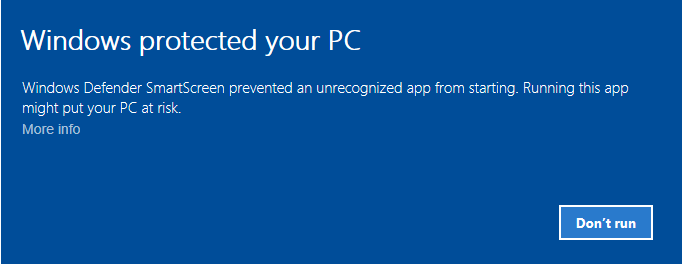 In this case click More info in the warning window. You'll get the next one:
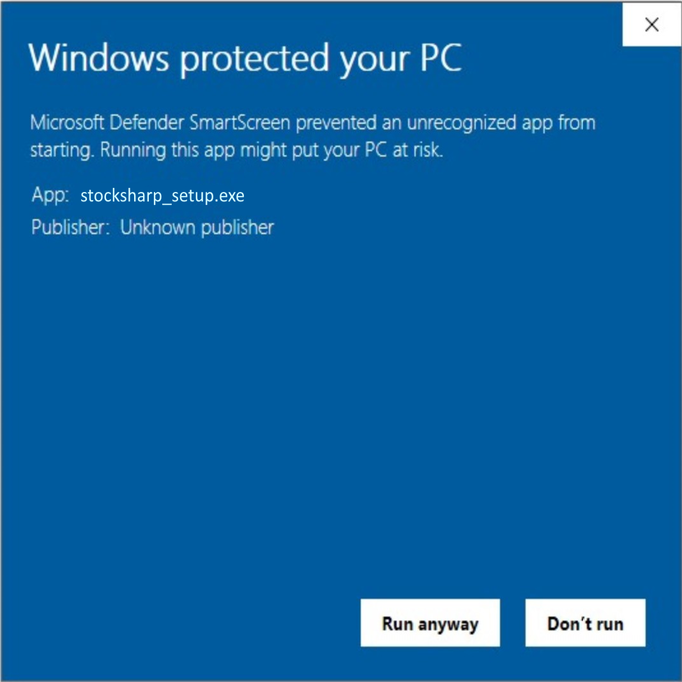 After clicking "Run anyway" button the installation begins.
After installation, open the program window.
How to work with Installer:
Installer allows you to:
- select programs available for download
- manage updates of downloaded programs
- purchase available paid programs
For the convenience of finding the necessary product in the program, you can choose the type of application.
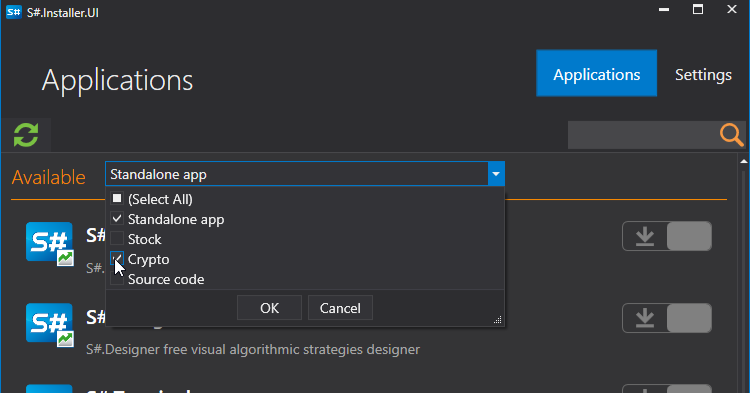
To installthe desired application, you need to:
- Select the app, click install, agree to the license agreement, and click Continue.
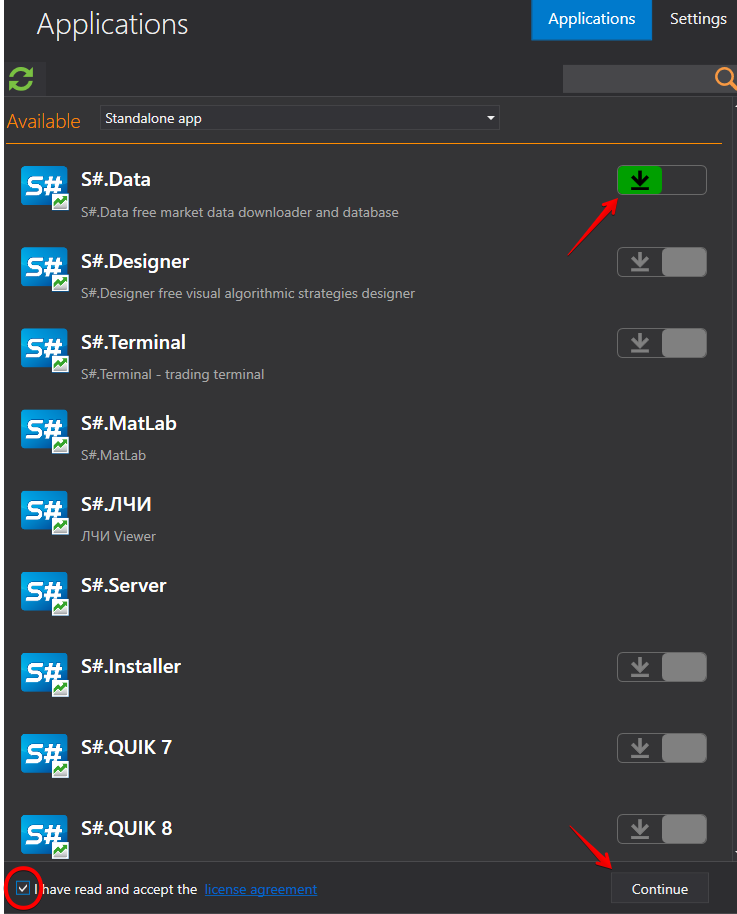
- After this you need to choose the installation path.
**IMPORTANT!**It is necessary that the folder where the program will be installed is empty.
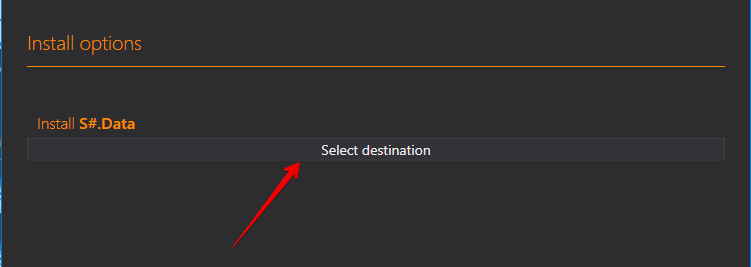
After selecting the directory, click Continue.
Select Execute and the installation process begins.
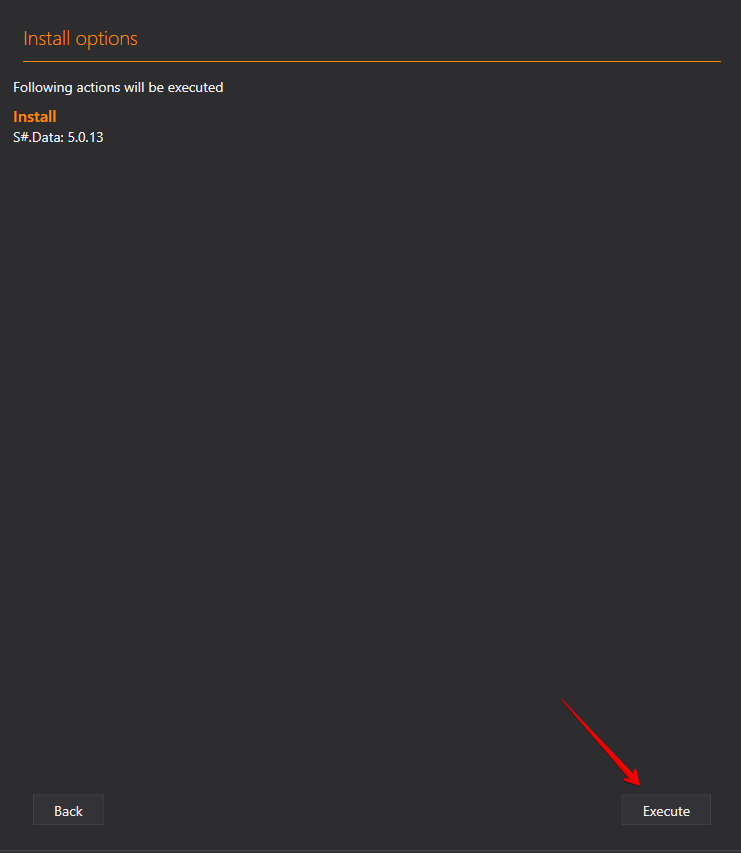
- After installation, you can use the program.
To deletethe program, select delete and click Continue.

To repair, select repair and click Continue.

Installer independently tracks all software updates and updates itself automatically. Therefore, there is no need to delete it after installation.
Installer is not closed by clicking on the "X" in the program window, but is closed via the toolbar, select the menu (using the right mouse button) Close.
You can also check for updates by clicking the check for updates button in the right corner of the program window.
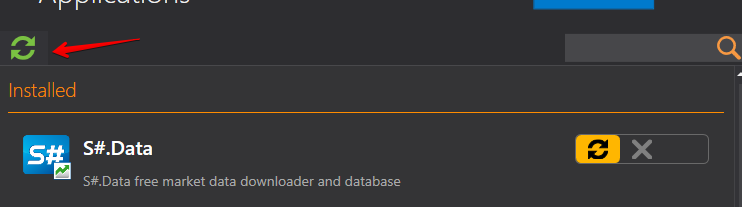
If updates are available, a notification will appear.

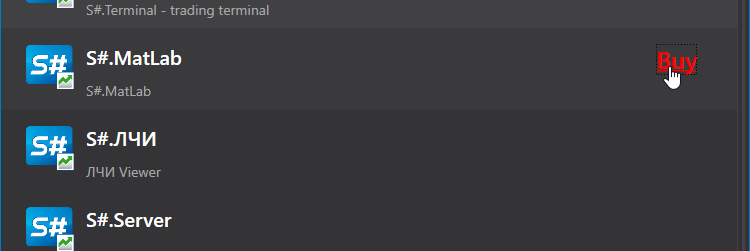
To purchase paid apps, select the software you need and click the Buy button.